

guito has read-only access to your reports. It never places orders or moves money in your Interactive Brokers account.
Connect your account
1
Choose Interactive Brokers
In Connections, click New connection and select Interactive Brokers.
2
Authorise guito in the Client Portal
In the Interactive Brokers Client Portal, go to Performance & Reports, open the Third-Party Reports tab and, on the Third-Party Services card, click +. Search for “guito” (it isn’t in the default grid), select the guito tile, and confirm with Continue.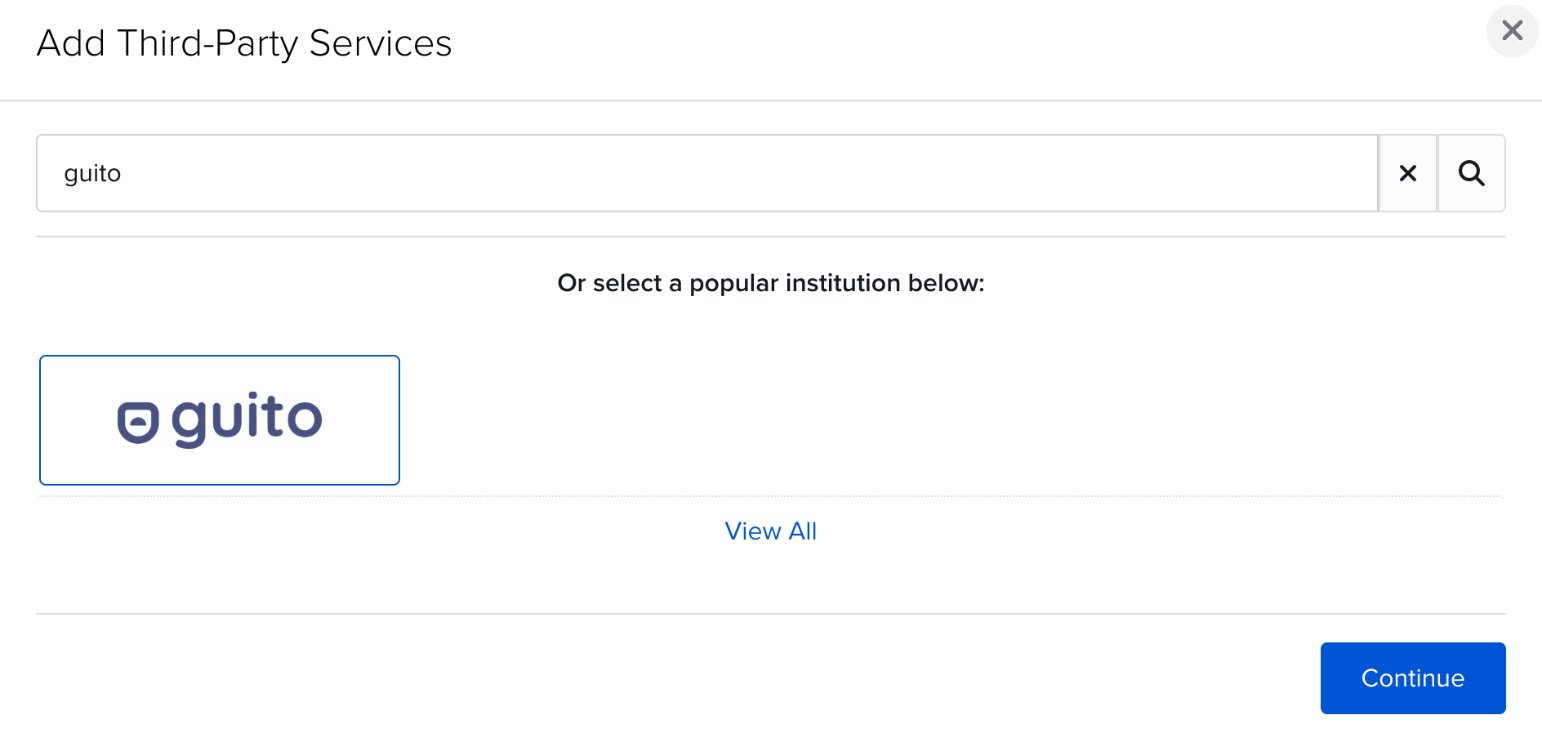
3
Copy the Token and the Query ID
On the Third-Party Services card, copy the Token and Query ID from the guito row and paste them into guito.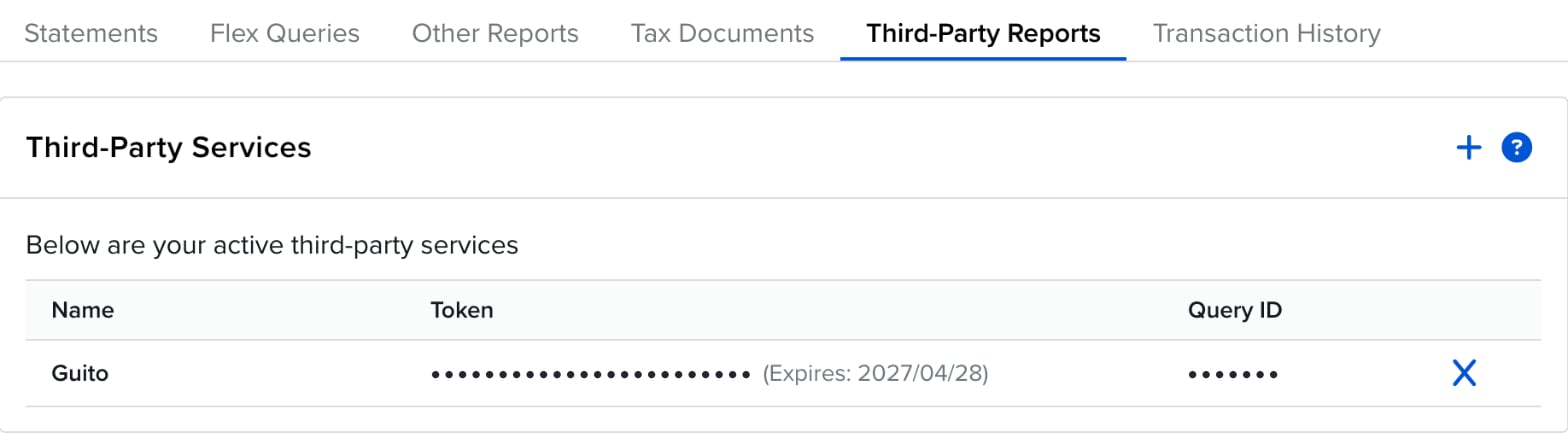
If you’ve just enabled guito in the Client Portal, Interactive Brokers may not have the first report ready yet. In that case, try again the next business day.
History from before you connected
Interactive Brokers can take a few business days to send the history from before you connected. It goes back to when you opened the account, as far as Interactive Brokers provides it. Until it arrives, each position you already held appears as a single buy at average cost, with the note Position on followed by the date, at average cost. Once it arrives, the dividends, interest, fees, deposits, and withdrawals from that history come in; anything older than what Interactive Brokers provides stays grouped in that opening buy.Conflicts with manual transactions
If you had already recorded by hand a buy or sell that Interactive Brokers also imports, review the Overlaps to review panel on the Connections page and confirm which are the same trade. Confirmed ones switch to the imported version.Update credentials, disconnect, and reconnect
If the Token expires or is revoked, choose Update credentials in the connection card’s actions menu and paste the current Token and Query ID from the guito row. To end the connection, choose Disconnect in the same menu. The Token and Query ID are deleted and everything already imported stays visible.Limitations
- History from before you connected goes back to when you opened the account, as far as Interactive Brokers provides it. Older positions appear as a single buy at average cost.
- Mergers and acquisitions aren’t applied for you: you may need to adjust the position manually. Splits are applied.
- Options and warrants aren’t supported yet.
- Shares transferred in from another broker come in without a cost, and the gain shows as ”—” until you set the average cost.
- Available on the Plus plan only.
Related pages

Net worth overview
See how your Interactive Brokers positions and cash join the rest of your net worth.

Connect Trading 212
Another broker guito syncs automatically.